I have a New Year’s gift for you guys this time! Everyone visiting my blog gets a special Quick Page. Don’t forget to unzip your Quick Page when saving it. This freebie can be used in any software.
Here’s the link for everyone to download this freebie:
Sorry, link has expired. Check out my newest post for new freebies.
Repaste this link in your browser, because it doesn't seem to open from my blog. A download window will open from where you can download this freebie.
You can add a picture with some text on this layout, then print your layout out and insert it in a blank 11 x 8.5” album. Follow my previous tutorial if you need help creating your album. It’s also possible to let the creator print and bind the perfect album for you in this size!!!
This is a finished sample from Liz Gardner from My Memories Suite.
What I am going to do today is, I’m going to show you guys how you can create your own calendar using this Quick Page. So start by opening your My Memories Suite Software. Choose the option ‘Create Album From Designer Template’. Now choose for an 11 x 8.5” album. I am just going to pick a Casual template. Click on ‘Next’. We only need one page, so delete the rest of the pages by holding your control key in and selecting all the pages leaving just one; press the remove button when you’ve selected the pages.
Your pages have been removed, leaving only one page. Click on ‘Next’.
The ‘Pick and Click’ option is selected, so click on ‘Next’. You can change your album location and name if you want; I’m just going to leave it the way it is and I’m going to click on ‘Finish’.
My album with only one page has opened.
We don’t need the photo and text boxes, so select all the photo and text boxes, right click and choose for the option ‘Delete’. You can select the boxes one by one or you can use a window selection to delete all the items on your page. The window selection is done this way: place you arrow cursor at the upper right of your page, then hold your mouse in and draw a window to the bottom left of your page. The opposite can also be done to select all the items; this mean drawing a window from the upper left corner to the bottom right corner. All the items are now selected, so right click to delete them.
Now we have a completely blank page.
Now click on ‘Embellishments’à ‘Add’à ‘Browse other…’ and then go to the file where you have saved your Quick Page. Select the Quick Page and then click on ‘OK’ and then on ‘Close’.
We now have our Quick Page inserted on our blank page.
I’m going to add a calendar grid which I had downloaded from the free kits at http://www.mymemories.com/ . You can download it, if you haven’t done it yet, but you can also skip this step if you want. Go to ‘Embellishments’ and insert one of the calendar grids. My grids are too big, so I’m going to make it smaller. Simply drag the grids to the left or right so you can see the handles and make it smaller with the handles.
My Grids now have the width of the window on my layout.
Now click on the ‘Calendars’ tab on your Control Panel, then click on the ‘Add Month’ button. January 2012 appears automatically and you have your calendar on your page. I haven’t selected the ‘Lines’ function, because I already have grids. If you aren’t using grids you an also select ‘Lines’ to have lines between the dates.
We need to move the calendar onto the grids and make it a bit bigger with the handles. Stretch it a bit out to get the dates on the grids. Use the ‘Lock Object’ function to select the grids if needed.
Now right click and send the grids to the back. My dates are on the embellishments of my QP which doesn’t look nice, so I’m going to stretch in the grids and the calendar dates a little bit. If you make a mistake, you can simply click on the ‘Undo’ button.
I’m going to place a background for the window area of my layout. I’m doing this by using a ribbon. Click on ‘Embellishments’ à ‘Add’ à ‘Ribbons’ à ‘Plain Ribbon’ and then choose for the color ‘Bubblegum’ and then click on ‘Apply’ and then on ‘Close’.
We now have a ribbon on our page. Stretch it in and out and make it big enough to get the white area covered. Right click and send it to the back.
We now only need to personalize our layout a little bit. I’m going to add a picture of me and my cousins and nephew and some text and Word Art. The 2012 buttons are embellishments from the ‘Heritage Pack’; it costs only $0.99 at http://www.mymemories.com/; you can also use a Word Art or Text if you prefer. I’m going to show you some other time how you can let your text follow a shape.
I’m going to do one last thing; I’m going to change the font of my calendar dates. Double click on your calendar dates; you will get a ‘Calendar Settings’ window. You can change your font, size, color and opacity of your header, lines and number. I’m only going to change the size of my header and numbers. The two Style buttons are for Bold (1st button) and Italic (2nd button). You may need to move the calendar dates a little bit.
Tada!!! This is my January Calendar page!
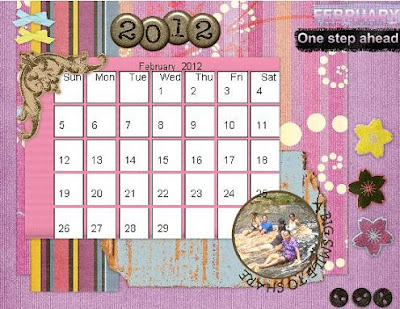
For your February page, right click on your thumbnail of your January page and choose for the option ‘Insert Duplicate Page’. So now you have a duplicated page. Change your text, Word Art and Picture. You can change the calendar dates by selecting the January calendar dates and changing the month on your Calendar tab on your Control Panel into February; your have your February calendar page ready in just one click.;) Here’s my February page!!! You guys complete the other pages in the same way.;) The pictures out here on my blog are not that clear because I have to resize them to be able to place it out here, but the picture quality actually is very good when you print it out and of course that’s the case when your picture itself is of good quality.;)
I think that you definitely want one of your own created calendars now, if you haven’t purchased this software yet. You can get a $10 discount using the code STMMMS35043 to purchase your My Memories Suite Version 3 software.;) If there are any questions you can place them on the comment section of this blog post. This week’s Quick Page was created with the content from my giveaway freebies, which I am giving away next week, so leave your name or nickname together with your e-mail address in the comment section if you want to participate in next week’s Quick Pages giveaway!
Love you guys,
Sharda


